Legal Document Management Software
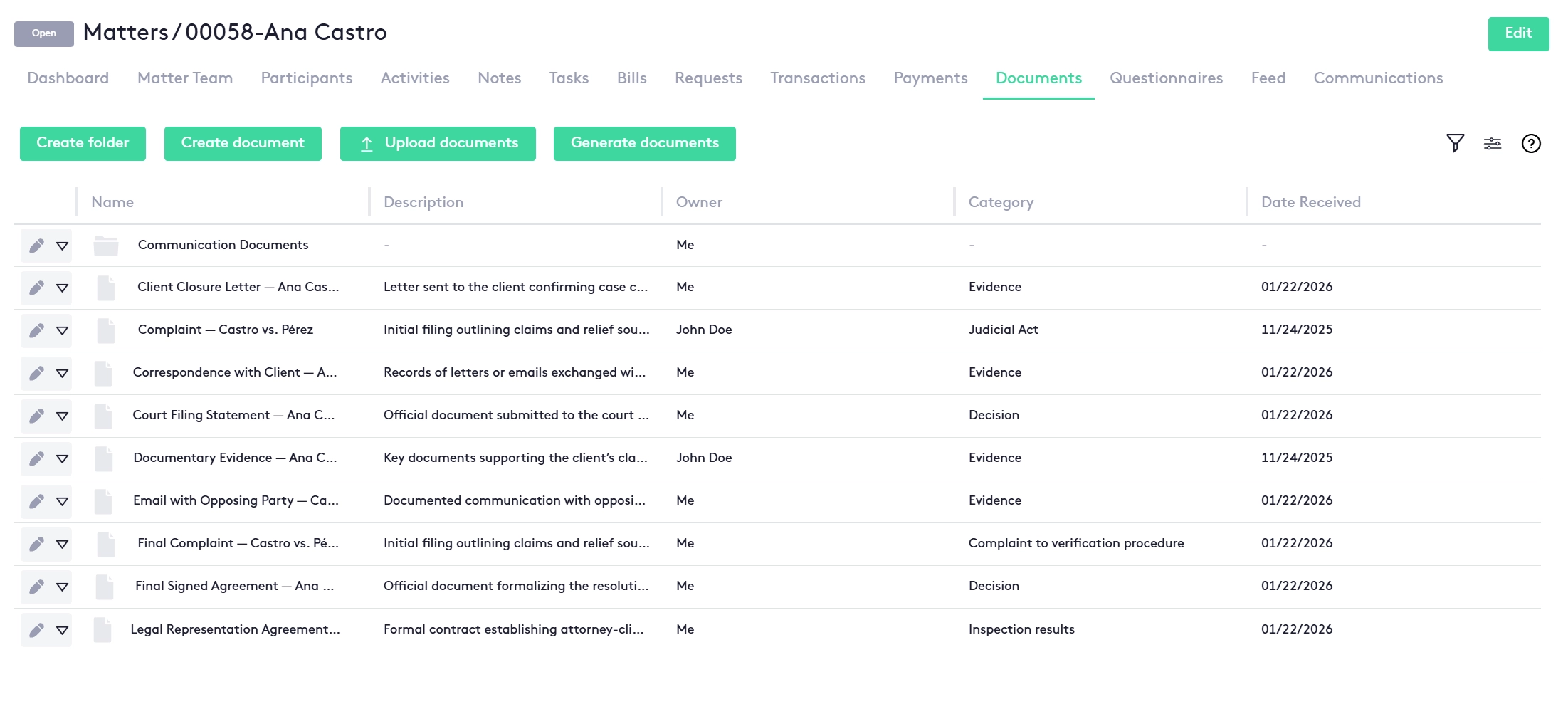
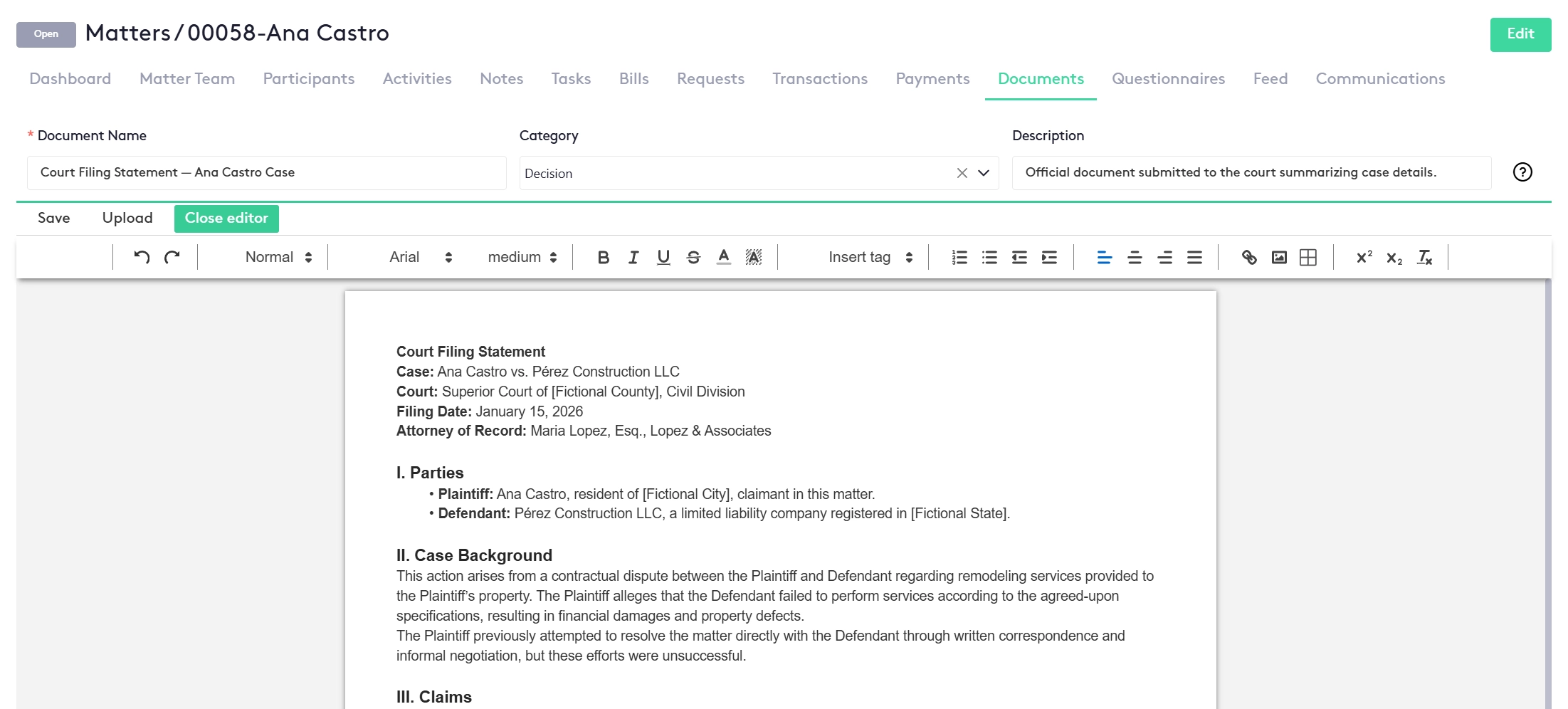
Maatdesk is legal document management software for law firms, built into the same legal practice management platform as your matters, contacts, e-signatures and billing. Every matter has a Documents tab with folders, uploaded files, documents generated from templates and documents sent for signature, and each file keeps its category, versions and audit log and can be shared with the client in the Client Portal. Documents are kept in Maatdesk's built-in secure cloud storage or your firm's Google Shared Drives, and open in the browser on a Mac, a Windows PC or a phone. Legal document management software, also called a law document management system, is the software a law firm uses to store, organize, find, share and control the documents of its cases. A legal document management system keeps each file with the matter it belongs to, records what happened to it and decides who can see it. Legal work runs on documents, and when files are scattered across inboxes, desktops and shared drives, every request for the latest version of an agreement slows the case down. In Maatdesk, documents are not a separate legal document management platform. They live on the Documents tab of every matter, inside the same legal practice management software that also runs the firm's contact management, legal calendaring, task management and legal billing, so a fee agreement, a complaint and the client's evidence sit in the matter's folders beside its notes, time entries and bills. That makes Maatdesk law firm document management software rather than general online storage: each file has a category, a description, an owner and a date received, and its versions and audit log are in its actions menu. Maatdesk states the limits plainly. Files are uploaded on a matter's Documents tab; on a contact's Documents tab you can create folders and documents, but there is no Upload option. File and folder names must be unique within a folder. Deleting a folder also deletes its files and subfolders and removes them from the Client Portal. Changing where documents are stored applies to new matters only: documents already stored stay where they are. Two screens from Maatdesk's legal document management software: a matter's Documents tab, with its folders and files, each with a description, owner, category and date received, and the buttons to create a folder or a document, upload documents or generate documents from a template; and a court filing open in Maatdesk's document editor, with its name, category and description above the text. Everything below is the document side of Maatdesk: document management software for law firms, used by attorneys and by the paralegals and staff who handle a case's files. Legal document management in Maatdesk follows one rule: every document belongs to a matter or a contact, sits in a folder and keeps its history. Each matter has a Documents tab with a folder tree, and the number next to a folder shows how many items it holds. Create a folder, a standard document or a signature document, or upload files, and the matter keeps them beside its notes, tasks and bills as part of Maatdesk's legal matter management. Contacts have a Documents tab too. When you upload a file, give it a name, a category, a description and the date it was received. The Documents tab lists Name, Signature Status, Description, Owner, Participant, Category and Date Received, and the column selector shows only the columns you need. Build templates in Settings, from a blank page or an imported DOCX or PDF file. Generate a fee agreement or a letter from the matter and Maatdesk replaces merge fields such as «Contact Name» with the matter's data. Create a signature document, or generate one from a signature template, and send it from the matter. E-signatures are built into Maatdesk, and the Signature Status column follows each document from Sent to Signed, so you don't need a separate e-signature account. Every file has Versions and Audit Logs in its actions menu, so the history of a document is one click away. Documents sent for signature also keep a signing audit log, which records each event, who did it and the signer's IP address and downloads as a PDF. Sort documents with categories such as Petition, Evidence or Fee Agreement. Add, rename, merge or delete categories in Settings; locked categories hold the documents Maatdesk creates itself, such as bill and deposit reports. Search a matter's folders, filter its Documents tab, or type a name in Maatdesk's top search bar and open the Documents results on the Search Results page, so a file can be found from anywhere in the app. The share button on any file or folder shares it with the client in the Client Portal, and a secure message to the client from the matter's Secure Inbox can carry an attached file. Maatdesk's plan includes unlimited storage. Keep documents in Maatdesk's built-in secure cloud storage, with no setup, or in your firm's own Google Shared Drives; files stored in Google Drive are marked with an icon on the Documents tab. Attorneys who look for legal document software for Mac are usually asking one thing: will it run on my computer? Maatdesk is a web app, so the same Documents tab, folders and document editor open in Chrome, Safari or Edge on a Mac, a Windows PC, a phone or a tablet, with nothing to install. A document uploaded at the office is on the matter when you open it from home or from the courthouse, and the layout adapts to the screen. Twenty-four seconds on working from wherever you are: Eight steps in Maatdesk's legal document management system: four to bring a case's legal documents in, and four to work with them and share them. Open the matter and click Documents. The folder tree holds the matter's folders: click one to open it, or search the folders. Click Create and choose Folder to set up the structure the matter needs, for example Pleadings, Evidence and Correspondence. Names must be unique within a folder. Choose Upload to add legal documents from your computer with a name, category, description and date received, or create a standard document in Maatdesk's editor. Click Generate, pick a standard or signature template, name the document and choose its category. Maatdesk fills in the template's merge fields with the matter's data. Each file's actions arrow opens Edit, Move to, Preview, Download and Duplicate, so a document can be checked or refiled without leaving the matter. Versions and Audit Logs in the same menu show the history of the document. Send a signature document to the signers. The Signature Status column and the E-Signatures module show when it is sent, viewed, signed or declined. Click the share button to share a file or a folder with the client in the Client Portal. Not everyone at a law firm needs access to everything, especially when confidential client documents are involved. In Maatdesk, a role is a set of permissions given to users and groups, organized by module. Permissions on own records apply only to the matters a user can access, permissions on all records apply to every matter of the firm, and the Administrator role has full control. Giving permissions through groups, for example one group per practice area, keeps access right as people join the firm or change position. Thirty-seven seconds on managing user access: Legal file management is the everyday half of document management: where a file goes, what it is called and how anyone finds it again. Maatdesk works as legal file management software by giving every matter the same structure: a folder tree, and a category, a description, an owner and a date received on each file. A law firm file management system only works if everyone files the same way, and the document categories set in Settings give the whole firm one list to choose from. Firms moving from a legal filing system of shared folders can keep their folder names: create the same folders on the matter, refile documents with Move to, and merge two categories that mean the same thing into one. For litigators looking for court document management software, pleadings, motions and filings sit in the matter's folders with their category and date received, and a pleading or motion can be uploaded to Maatdesk's AI Pleading Reviewer, which points out missing elements and procedural risks before it is filed. Many small law firms start with online storage: a shared drive of folders, a sync app and email attachments. It keeps files, but it does not know which case a file belongs to. Anyone comparing the best online storage for lawyers ends up asking the same questions: which matter is this file for, who changed it, and who can see it? A legal document management system answers them on the matter. Comparing the best document management software for law firms? Our guide to how to choose legal document management software breaks the decision into the capabilities to test. Documents reach a matter in more ways than an upload. Maatdesk keeps all of them on the same Documents tab: With Maatdesk for Gmail, link an email, or all the emails of a conversation, to a matter and save the attachments to a matter folder. The linked emails appear in the matter's Communications tab. Documents prepared for signature appear in the E-Signatures module with their status, their matter and a full audit log. The signer gets a secure link by email and can sign from any device. Upload a contract to the AI Contract Reviewer, or a pleading or motion to the AI Pleading Reviewer, for a structured review before signature or filing. AI can make mistakes, so check the review against the document. The matter timeline shows document events too, and its Pending Items list the documents still waiting for signature. For the AI side, see Maatdesk's AI contract and document review. Legal document management software keeps each case's documents in one place, records what happens to them and controls who sees them. In Maatdesk, legal document management is part of the firm's legal practice management software: every matter has a Documents tab with folders, categories, versions and audit logs, beside the matter's tasks, calendar and bills. Three things: one place for each case's documents, one way of filing them, and control over who sees them. Maatdesk keeps documents on the matter they belong to, gives the firm one list of document categories, and controls access with roles and permissions. A Documents tab on every matter and contact; folders; uploads with a name, category, description and date received; documents created in Maatdesk's editor or generated from templates with merge fields; built-in electronic signatures; preview, move, download and duplicate; versions and audit logs for each file; sharing with the client in the Client Portal; document categories; search; and storage in Maatdesk's built-in secure cloud storage or your firm's Google Shared Drives. Stored contracts and pleadings can also be sent to Maatdesk's AI contract and document review for a structured report before signature or filing. Cloud storage gives a law firm a place to keep files. Legal document management system software adds matter context: in Maatdesk, documents are filed on the matter they belong to, each with a category, a description, an owner and a date received, kept with their versions and audit logs, and shared with the client through the Client Portal. For a checklist of what to test, see our guide to how to choose legal document management software. Yes. Maatdesk is a web app, so its legal document management works in Chrome, Safari or Edge on a Mac, a Windows PC, a phone or a tablet, with nothing to install. No. Maatdesk's plan includes unlimited storage. Documents are kept in Maatdesk's built-in secure cloud storage, with no setup, or in your firm's Google Shared Drives if you choose that storage in Settings. Storage that knows which case each file belongs to. General online storage keeps folders of files; Maatdesk keeps each document on its matter, with a category, versions and an audit log, and shares it with the client through the Client Portal. Storage is unlimited in the plan. Yes. In Settings, the Document Storage Strategy can store the documents of your matters in your firm's Google Shared Drives instead of Maatdesk's built-in storage. The change applies to new matters only (documents already stored stay where they are), and setting it up requires permission to manage members of your Shared Drives. Files stored in Google Drive are marked with an icon on the Documents tab. Yes. Every file's actions menu has Versions and Audit Logs. Documents sent for signature also have a signing audit log that shows each event, when it happened and who did it, including the signer's role and IP address; it downloads as a PDF. Firm users see what their roles allow. A role is a set of permissions organized by module: permissions on own records apply to the matters the user can access, permissions on all records apply to every matter of the firm, and the Administrator role has full control. The client sees a document in the Client Portal when someone shares it with them. Yes. The share button on a file or folder shares it with the client in the Client Portal, and a secure message to the client from the Secure Inbox can carry an attached file. Deleting a shared folder also removes it from the Client Portal. Yes. Create standard or signature templates in Settings, from a blank page or an imported DOCX or PDF file, then generate a document from the matter's Documents tab. Maatdesk replaces the template's merge fields, such as «Contact Name», with the matter's data. Yes. E-signatures are built into Maatdesk, so you don't need a separate e-signature account. Prepare a signature document on the matter's Documents tab and send it: the signer gets a secure link by email and can sign from any device, and the Signature Status column shows when it is sent, viewed, signed or declined. Yes, from Gmail. With Maatdesk for Gmail you link an email, or all the emails of a conversation, to a matter and save the attachments to a matter folder. Documents are kept in Maatdesk's built-in secure cloud storage or your firm's Google Shared Drives. Roles and permissions decide which firm users can work with which records, the share button puts a document in the client's Client Portal, and each file keeps an audit log of what happened to it. Small law firm document management software has to work without an IT department. Maatdesk's built-in storage needs no setup, and a small firm gets the same document features as a large one in a single plan: unlimited storage, folders, categories, templates, built-in e-signatures, versions, audit logs and client sharing. Document management is included in Maatdesk's single plan: $39 per user per month billed monthly, or $29 per user per month billed annually. Maatdesk is not free legal document management software, but new firms that sign up before December 31, 2026 get a 12-month free trial with no credit card required; see pricing for what the plan includes, and our guide to legal practice management software costs for market prices. The best legal document management software is the one that keeps every file with its case. Judge any of the legal document management programs you compare on five tests: documents filed on the matter they belong to; categories the whole firm shares; versions and an audit log for each file; e-signatures and client sharing without another tool; and access controlled by role. Maatdesk passes all five and keeps the matter, the calendar and billing in the same platform.What Is Legal Document Management Software,
and Why Do Law Firms Need It?Legal Document Management Software in Two Screens
Document Management for Law Firms: Every File on the Matter
Files and Folders on Every Matter
Uploads With Category and Date Received
Document Templates With Merge Fields
Built-In E-Signatures
Versions and Audit Logs
Document Categories You Control
Search and Filters
Secure Sharing With the Client Portal
Unlimited Storage, Built-In or Google Drive
Legal Document Management Software for Mac, Windows and Mobile
How to Organize Legal Documents by Matter in Maatdesk
Bring documents in
1. Open the matter's Documents tab
2. Create the folders
3. Upload or create documents
4. Generate from a template
Work with them and share them
5. Preview, edit or move
6. Check versions and audit logs
7. Send it for signature
8. Share it with the client
Who Can See Each Legal Document: Roles and Permissions
Legal File Management Software
for Every Case FileLegal Document Management System vs Cloud Storage and Shared Drives
Question Shared folders and cloud storage Maatdesk legal document management Which case a file belongs to A folder name someone chose The matter whose Documents tab holds it What a file is Whatever the file name says A category, a description, an owner and a date received Earlier versions Copies named final, final-2 and final-signed Versions in the file's actions menu What happened to a file Found by asking around Audit Logs for each file Documents from templates Copy last month's letter and edit it Templates with merge fields filled from the matter Signatures A separate e-signature account Built-in e-signatures, sent from the matter Sharing with the client A link or an email attachment The share button on the file or folder, to the Client Portal Who can see it Whoever has the folder Roles with permissions by module, on own or all matters Subscription Another tool to pay for Included in Maatdesk's single plan, with unlimited storage What your firm gains
Documents From Email, E-Signature and AI Review in One Place
Email attachments
E-signatures
AI document review
Legal Document Management Software FAQs for Law Firms