
Legal Billing Software
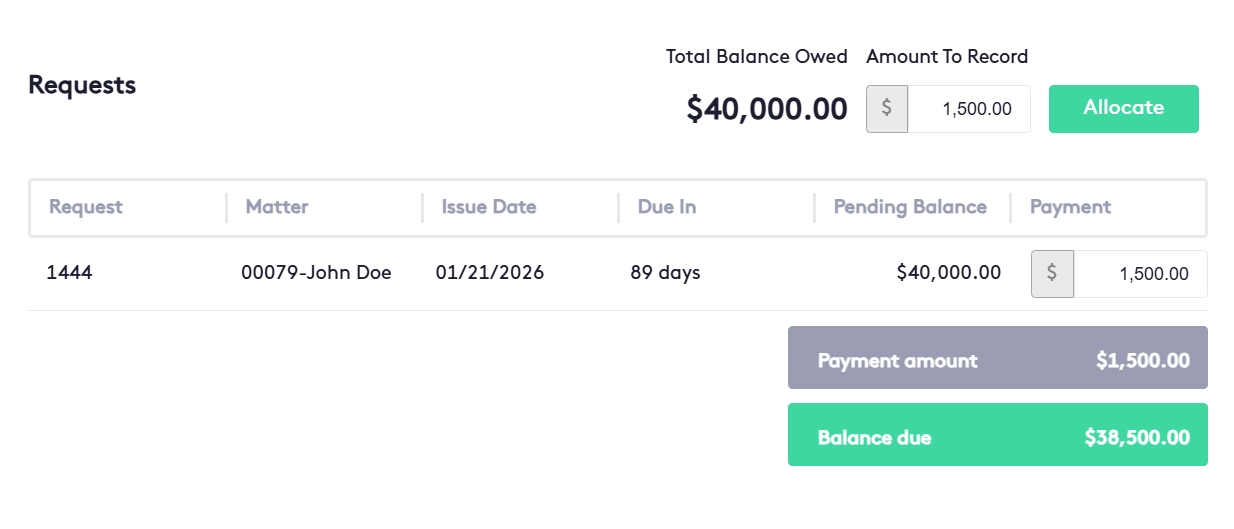
Maatdesk is legal billing software for law firms, built into the same legal practice management platform as your matters, time entries and trust accounts. A Quick Bill loads every unbilled time entry, expense and flat fee on a matter into one invoice. Bill hourly, by flat fee, by contingency or by monthly retainer; send invoices through approval when you want a review; and get paid in the client portal, from available operating or trust funds, or with a recorded payment. Payment plans, credit notes and accounts receivable reports keep every balance in view, in the browser on any computer or phone. Legal billing software is the system a law firm uses to turn recorded work into invoices, collect payment and see what each client still owes. Law firm billing software exists because legal billing has rules that ordinary invoicing tools do not follow: hours billed at the right rate, flat, contingency and retainer fees, client money held in trust that must stay apart from the firm's own, and invoices a responsible attorney may want to review before the client sees them. In Maatdesk that job is not a separate product: legal billing is part of the same legal practice management software that opens the matter and records the time. That is what makes it billing software for law firms rather than an invoice template. Time entries, expenses and flat fees are saved on the matter as Unbilled; a Quick Bill loads all of them into one invoice; the invoice is approved, then shared by email or downloaded as a PDF; and the payment is recorded against it, taken from the client's available operating or trust funds, or made by the client in the client portal. The attorney, the paralegal and the person who sends the bills all work on the same record, so billing software for attorneys stops meaning a second system and an export between the two. Maatdesk states the limits plainly. A payment plan schedules installments and puts each due date on the calendar, but it does not charge the client: each installment payment is recorded when it arrives. Invoices are built from the activities on a matter, not typed from a blank template, and a closed matter cannot be billed. And Maatdesk is a web app, not a legal billing app to install: the same invoices open in the browser on a Mac, a Windows PC, a phone or a tablet. Seven screens from Maatdesk's law firm billing software, the same legal office billing software for a solo practice or a firm with several offices: an approved retainer request with its total, payment and balance owed; the Invoice Details panel; a matter's billing summary with Print Case Statement; a payment plan's installments; the Work recorded widget; a payment being recorded and allocated against a request; and the totals at the foot of the Billing window. Everything below is the billing side of Maatdesk's legal practice management software. As invoicing software for lawyers it follows one rule: the work is recorded once on the matter it belongs to, billed from there by the method the matter was opened with, and paid against the invoice that carries it. Click Add Bill in the Billing window, on a matter or on a client's dashboard, and Maatdesk loads every unbilled time entry, expense and flat fee for the matter, organized by type, into one invoice. Add, edit or remove lines before you generate it; a removed line is not deleted and waits for the next bill. Bill each matter by Hourly rate, Flat Fee, Contingency Fee or Monthly/Retainer Fee. Hourly matters can carry custom rates per user or group; a flat fee matter creates its invoice when the matter is saved; and a retainer matter comes up for invoicing every month. Skip Approval Process is checked by default. Uncheck it and the invoice is saved as a Draft; send it to Pending Approval and the user you choose is notified by email or in the app, and can still edit the invoice before approving it. As law firm invoicing software, Maatdesk shows every activity as its own line with All Details, or groups the lines by type with Summary. Apply the firm's primary and secondary tax, take the due date from the client's payment profile, then share the invoice by email or download it as a PDF. Split an approved invoice into equal installments with Generate installments, or add them by hand, with an optional down payment. Each installment is placed on the firm's Payment Plan calendar, and the plan's status updates as payments are recorded. Record a payment from an external source, a payment site or a bank account, and allocate one amount across several invoices; an overpayment can be deposited for the client's matter. Bills and payments also post to the client's Contact Dashboard, and every payment has a PDF or email receipt. When an invoice is generated, Maatdesk can pay it from available matter funds, then client funds, in operating accounts and then in trust accounts, and record the payment for you. Trust accounts are meant to hold only client funds, used to pay that client's bills. Billable work recorded with Legal Time Tracking, expenses and flat fees all wait as Unbilled on the matter. The matter's Financials widget shows the unbilled total by type, and its Add Bill button turns it into an invoice. Lower what a client owes with a credit note, return money from an operating account with a refund, or void an invoice that should not stand. Voiding returns its time entries, expenses and flat fees to unbilled, ready for a new invoice. Eight steps, none of them in another application: four to build and send the invoice with Maatdesk's attorney invoicing software, and four to get it paid and read it back. Time entries, expenses and flat fees are saved on the matter as Unbilled. An expense or flat fee can also be billed on its own by checking Generate Bill when it is saved. Click Add Bill in the Billing window, on a matter, in the matter's Financials widget or on the Bills tab of a matter or contact. Every unbilled activity for the matter loads into one invoice, and lines can be added, edited or removed. The issue date defaults to today and the due date follows the grace period in the client's payment profile. Choose All Details or Summary, and apply the firm's primary and secondary tax. Leave Skip Approval Process checked to approve the invoice at once, or uncheck it to save a Draft, send it to Pending Approval and let the approver edit and approve it. Share the invoice by email or download it as a PDF. In the bill's payment options, Maatdesk can pay it from available matter and client funds in operating accounts, then in trust accounts, and deposit the payment in the operating account you choose. Whatever those funds do not cover stays on the invoice as a balance. Record a payment from an external source, a payment site or a bank account and allocate it across invoices, or let the client pay in the client portal through the firm's merchant account. Each payment has a PDF or email receipt. On an approved invoice, generate equal installments or add them by hand. Installment dates go on the Payment Plan calendar, and each installment payment is recorded when it is received. The Due In column counts the days left or flags Past due, the invoice turns Paid when its balance is covered, and the accounts receivable reports show what is still owed, grouped by client or attorney. Automated legal billing can mean invoices that create themselves, terms that apply themselves or payments that post themselves. Here is exactly what Maatdesk's legal billing automation does at each of those points, and what a person at the firm still does: The Billable Clients tab lists every client with unbilled activity and generates invoices for all of them, for one client, or for the matters you pick, in one run. The Monthly/Retainer Fee tab does the same for retainer matters once a month has passed. A flat fee matter creates its invoice when it is saved, and an expense or flat fee saved with Generate Bill is billed on its own. A client's payment profile sets the grace period that fills in the due date, an optional discount for paying within a set number of days, and annual interest, simple or compound, added to overdue invoices at the interval the firm chooses. Editing a profile changes new invoices only. When bills are generated, available operating and trust funds can pay them and Maatdesk records those payments. What stays manual: a payment plan never charges the client, and a payment that neither comes from available funds nor is made in the client portal is recorded by the firm when it arrives. Generated bills can still go through review: uncheck Skip Approval Process and every bill in the run is saved as a Draft, and the user named under Notify User is told by email or in the app when the run is done. That is automated billing for attorneys without losing the attorney's say over what the client receives. Many small firms still bill from three places: hours in a spreadsheet, an invoice typed in a word processor, and a bank statement checked by hand to see who has paid. Law office billing software exists to replace all three, so the first thing to check when comparing law billing programs is where the invoice comes from. In Maatdesk it is built from the matter, which is what legal billing software for small firms should mean. The difference in one table — a spreadsheet and a word-processor invoice against Maatdesk billing: For what separate billing and time tools add to the total cost of legal software, see how much legal practice management software costs; for the stages to test before choosing among legal billing programs, see the legal billing software workflow guide. Every invoice in Maatdesk has a status and a clock. Draft and Pending Approval invoices can still be edited; an Approved invoice can take payments, payment plans and credit notes; an invoice turns Paid when its balance is covered; and a Voided invoice stays on record without counting toward balances. The Due In column shows the days left before the due date, Paid, or Past due, so the firm sees at a glance which invoices need a call. Clients see their side of it in the client portal, where they can view, pay and download their invoices. Card payments run through MaatPay, the law firm payment processing built into Maatdesk: bill payments are deposited to the firm's operating account and trust/retainer payments to its trust (IOLTA) account, each through its own merchant account, and every payment is applied to its invoice automatically. A firm can also connect a merchant account of its own (USAePay is supported). That makes Maatdesk legal payment software as well as legal billing software that accepts online payments. Trust accounts are meant to hold only client funds, which neither the firm nor the attorney owns; the firm's own money stays in operating accounts. A lawyer has to hold client property separate from the lawyer's own under ABA Model Rule 1.15, and Maatdesk keeps the two apart as separate account types: a bill is paid from trust only with that client's or matter's available trust funds, and the payment is recorded as a transaction on the matter. Trust accounting itself is covered on the legal trust account management software page. Contingency fee matters have their own settlement ledger: it follows the settlement from the gross amount received into trust, through case costs, medical liens and client advances, to the attorney fee transferred to operating and the net paid to the client, and produces a Settlement Statement PDF. Two minutes on how a firm sets up client portal payments in Maatdesk: add a merchant in Settings, enter the payment provider's keys, choose the operating account that receives the funds, and mark the merchant as active. Law firm billing systems are judged by what they tell the firm at month-end, so the reports are the place to start when comparing them. Each of Maatdesk's billing reports has a filter panel, groups by client or attorney, and exports to PDF: Every unpaid or partly paid invoice with its client, matter, due date, total, credit notes, amount paid and balance still owed, with totals invoiced, paid and pending. Outstanding balances by client and responsible attorney, sorted into Current, 1-30, 31-60, 61-90 and 91+ days overdue, so collection starts with the oldest and largest. Every bill the firm has created, with its status, due date, original amount, credit notes, payments and remaining balance — the record to check when a client asks what was billed and when. For each matter: accounts receivable, unbilled time entries and expenses, fees, and the balance held in trust, so the firm sees what is owed and what is available to pay it. On a single matter, the billing summary in the Financials widget shows the amount collected, refunded payments, available operating and trust balances, the balance awaiting payment, unbilled balances and the running case balance, and Print Case Statement exports it to PDF. The Payments by Method report adds where the money came from, and more reports are on the management reports page. An invoice is only useful if it can be trusted later. In Maatdesk only Draft and Pending Approval invoices can be edited, and only a Draft can be deleted; an Approved invoice is corrected with a credit note or a refund, and can be voided once it has no payments, refunds or credit notes; a voided invoice stays on record. A closed matter cannot be billed, and changing the firm's details or a client's payment profile changes new invoices only, never the ones already created. Firms that want lawyer billing software on a Mac do not need a download: Maatdesk is a web app, so invoices are created, approved and paid from Chrome, Safari or Edge on a Mac, a Windows PC, a phone or a tablet with nothing to install. Who sees the money is up to the firm: access to billing and trust accounts can be limited by role, and financial reports can be granted report by report, with currency amounts hidden where needed. How Maatdesk handles client and billing data is set out in the privacy policy. Legal billing software turns a law firm's recorded work into invoices, collects payment and tracks what each client owes. In Maatdesk it is the billing side of the practice management platform: a Quick Bill that loads unbilled time entries, expenses and flat fees onto one invoice, four billing methods, optional approval, payment from operating or trust funds or in the client portal, payment plans, and accounts receivable reports. Legal billing has to reflect billable time at the right rate, expenses, flat, contingency and retainer fees, client funds held in trust, and the firm's own review policy. Maatdesk is purpose-built for legal billing: invoices are built from the activities recorded on the matter, can go through approval, and can be paid from the client's trust funds without mixing them with the firm's operating money. Our guide on how to evaluate legal billing software walks through the full workflow from time entry to payment. Uncheck Skip Approval Process and the invoice is saved as a Draft. A Draft can be edited and sent to Pending Approval for a chosen user, who is notified by email or in the app and can still edit the invoice before approving it. Only an Approved invoice can take payments, payment plans or credit notes, so nothing is collected on a bill the firm has not signed off. A Quick Bill loads every unbilled time entry, expense and flat fee for the matter, organized by type, so nothing is typed twice. The due date comes from the client's payment profile and the tax from the firm's settings; the invoice is emailed to the client with Share, downloaded as a PDF, or viewed and paid in the client portal. The Billable Clients tab does the same for many clients in one run. Recorded time cannot fall off an invoice by accident: every unbilled time entry, expense and flat fee stays on its matter, in the matter's Financials widget and in the Billable Clients tab until a bill includes it, and an activity removed from a bill or left on a voided invoice returns to unbilled. Recording the time in the first place is covered on the legal time tracking software page. Yes, through its billing settings. Each matter takes a billing method and custom hourly rates by user or group; each client takes a payment profile with its own grace period, early-payment discount and late interest; the firm sets a primary and a secondary tax; each invoice shows all details or a summary; and approval can be required or skipped invoice by invoice. Four: Hourly rate, with optional custom rates per user or group; Flat Fee, which creates the flat fee and its invoice when the matter is saved; Contingency Fee, a percentage of the amount earned, with payments recorded manually; and Monthly/Retainer Fee, an initial amount followed by a monthly amount billed from the Monthly/Retainer Fee tab. Yes. Clients can view, pay and download their invoices in the client portal, and card payments run through MaatPay: bill payments go to the firm's operating account and trust/retainer payments to its trust (IOLTA) account, each through its own merchant account. That gives clients visibility into payment status: each invoice shows what has been paid and what is still due, and it changes as soon as a payment is made in the portal or recorded by the firm. Inside the firm, every invoice shows its status — Draft, Pending Approval, Approved, Paid or Voided — and a Due In column with the days left, Paid or Past due. Yes, on any Approved invoice or request, or while creating or editing a billable matter: on the flat fee for a Flat Fee matter, or on the retainer request for an hourly one. Generate installments splits the balance equally by number and frequency, with an optional down payment, or installments can be added by hand; the plan cannot exceed the invoice. Each installment goes on the Payment Plan calendar. A payment plan does not charge the client: each installment payment is recorded when it is received. Yes. When a bill is generated, Maatdesk can use available matter funds and then client funds in operating accounts, followed by matter and client funds in trust accounts, record the payment and deposit it in the operating account you choose. Any balance those funds do not cover stays on the invoice. To ask a client for a retainer or a trust top-up, create a trust request. Maatdesk is legal billing software with the bank-account side of law firm accounting built in: operating and trust accounts with their balances, a transaction history for each account, deposits, transfers between accounts or matters, trust disbursements and trust reconciliation against the bank statement, plus receivables and payments reports. It is not presented as a general ledger or tax bookkeeping system, so a firm comparing small law firm accounting software should ask its accountant whether it also needs separate accounting software for law firms. Trust accounting is covered on the legal trust account management software page. A credit note lowers what the client owes on an Approved invoice: a $100 credit note on a $500 invoice leaves $400 to pay. A refund returns money the client paid, from an operating account, on an Approved or Paid invoice. Voiding an invoice that has no payments, refunds or credit notes keeps it on record but cancels it, and its time entries, expenses and flat fees return to unbilled for a new invoice. Yes, in runs the firm starts. The Billable Clients tab generates invoices for every client with unbilled activity, or for the clients and matters you pick; the Monthly/Retainer Fee tab generates the monthly invoices for retainer matters; a flat fee matter creates its invoice when it is saved; and Generate Bill on an expense or flat fee bills it on its own. Generated bills can skip approval and be paid from available funds, or be saved as Drafts for review. Four billing reports: Accounts Receivable Invoices (unpaid and partly paid invoices), Accounts Receivable Aging Invoices (balances in Current, 1-30, 31-60, 61-90 and 91+ days overdue), Billing History (every bill with its status, credits, payments and balance) and Matter Balances Summary (receivables, unbilled time and expenses, fees and trust balance per matter). Payments by Method adds where the money came from, every report exports to PDF, and more are on the management reports page. Yes. Maatdesk is a web app, so legal billing on a Mac runs in Chrome, Safari or Edge with nothing to install, and the same invoices open on a Windows PC, a phone or a tablet. There is no separate Mac version to download or keep up to date. To download invoice and receipt PDFs, the browser has to allow pop-ups for Maatdesk. In Maatdesk, billing is included in the single plan, with no billing add-on: $39 per user per month billed monthly, or $29 per user per month billed annually. Every user gets the same features, including billing and invoicing, the client portal and case management; see pricing for the full list. For what legal software costs in general, including separate billing and time tools, see how much legal practice management software costs. For small firms and solo practitioners, the best legal billing software is the one that runs without a second system or an IT person. Small law firm billing software should bill from the matter, take payments and show who owes what in one place, at a price per user. Maatdesk does that on a single plan with no billing add-on: a Quick Bill turns the matter's unbilled time, expenses and flat fees into an invoice, payments are recorded or made in the client portal, and the accounts receivable reports show what is still owed, all in the browser. That makes it law practice billing software a one-attorney office can run on its own. The best law firm billing software is the one that bills from the matter and gets paid against the invoice. Five tests: invoice lines that come from recorded time, expenses and fees rather than retyping; a review step the firm can require; client trust funds kept apart from operating money but usable to pay that client's bill; payments, credits and refunds recorded against the invoice; and receivables you can read by client, attorney and age. Maatdesk passes all five and adds a sixth: it is part of the practice management platform the firm already runs its matters from.What Is Legal Billing Software,
and Why Do Law Firms Need It?Law Firm Billing Software in Seven Screens
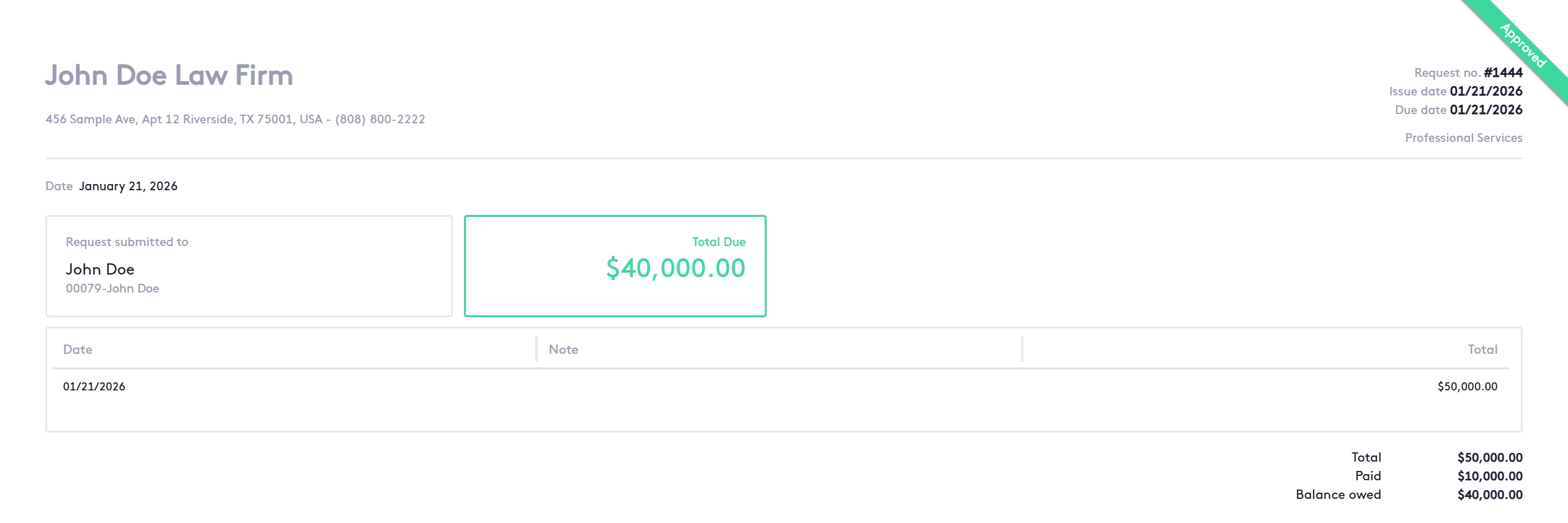
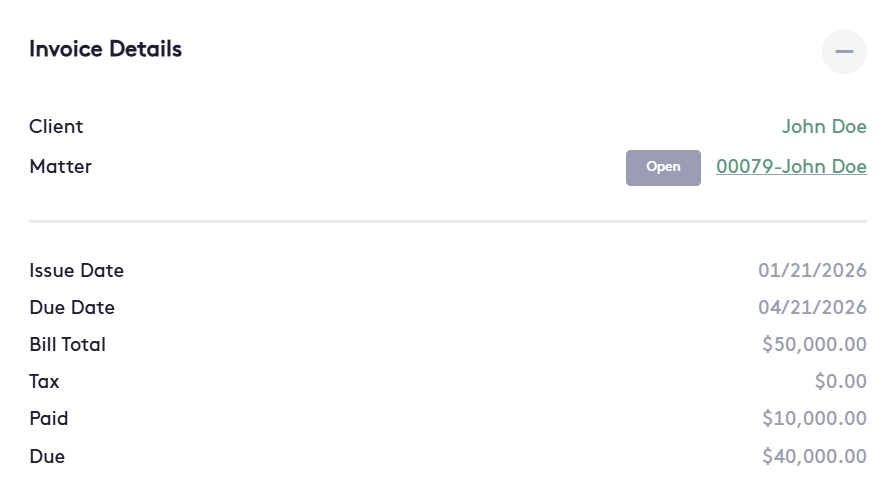
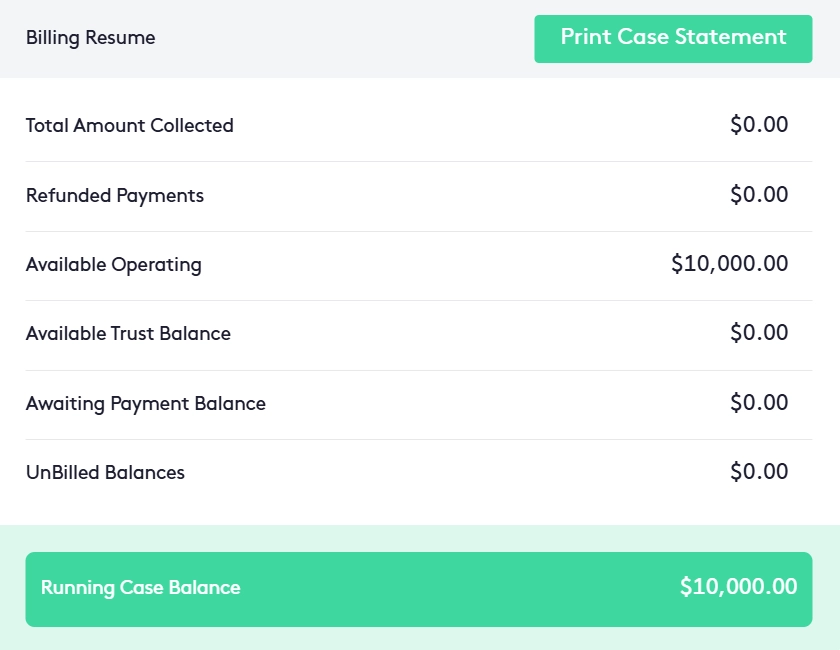
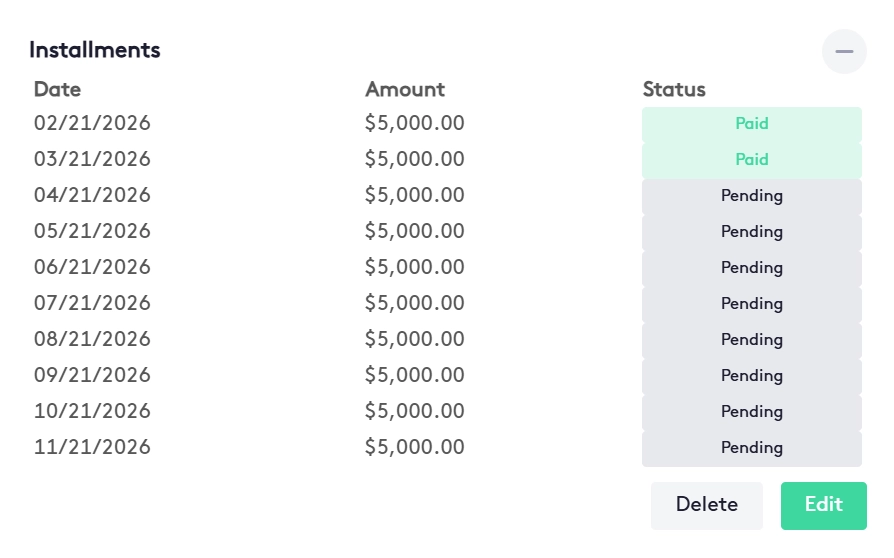


Billing Software for Lawyers, Built Into Every Matter
A Quick Bill for Every Matter
Four Billing Methods
Approval Before It Reaches the Client
Invoices Clients Can Read
Payment Plans and Installments
Payments From Any Source
Pay From Operating or Trust Funds
Time, Expenses and Flat Fees on One Bill
Credit Notes, Refunds and Voids
How Attorney Billing Software Works in Maatdesk
Build and send the invoice
1. Record the work on the matter
2. Open a Quick Bill
3. Set dates, layout and tax
4. Approve it, or send it for approval
Get paid and read it back
5. Let available funds pay it
6. Record the payment, or let the client pay online
7. Set a payment plan if the client needs one
8. Read the balances back
Automated Legal Billing: What Maatdesk Does for You
Invoices in one run
Terms that apply themselves
Payments that post themselves
Legal Office Billing Software Instead of Spreadsheets and Word Invoices
Question Spreadsheet and word-processor invoice Maatdesk legal billing Where the invoice lines come from Typed or pasted from a timesheet Every unbilled time entry, expense and flat fee on the matter How the fee is set Looked up by hand for each client The matter's billing method and custom rates Tax and due date Worked out on each invoice The firm's primary and secondary tax; the due date from the client's payment profile Review before sending An email thread Draft and Pending Approval statuses with a named approver Paying the bill from trust A separate ledger and a manual transfer Available operating, then trust funds pay the bill and the payment is recorded Who has paid The bank statement, checked by hand Paid, Past due or days left on every invoice, and accounts receivable reports A mistake after sending Edit the file and send it again A credit note, a refund or a void; voided activities return to unbilled Subscription A separate billing tool, if the firm buys one Included in Maatdesk's single plan What your firm gains
Legal Billing and Payments Software:
From Invoice to PaidBilling Reports: Receivables, Aging and Matter Balances
Accounts Receivable Invoices
Accounts Receivable Aging Invoices
Billing History
Matter Balances Summary
Invoices That Hold Up,
on Any DeviceLegal Billing Software FAQs for Law Firms