
Legal Task Management Software for Law Firms
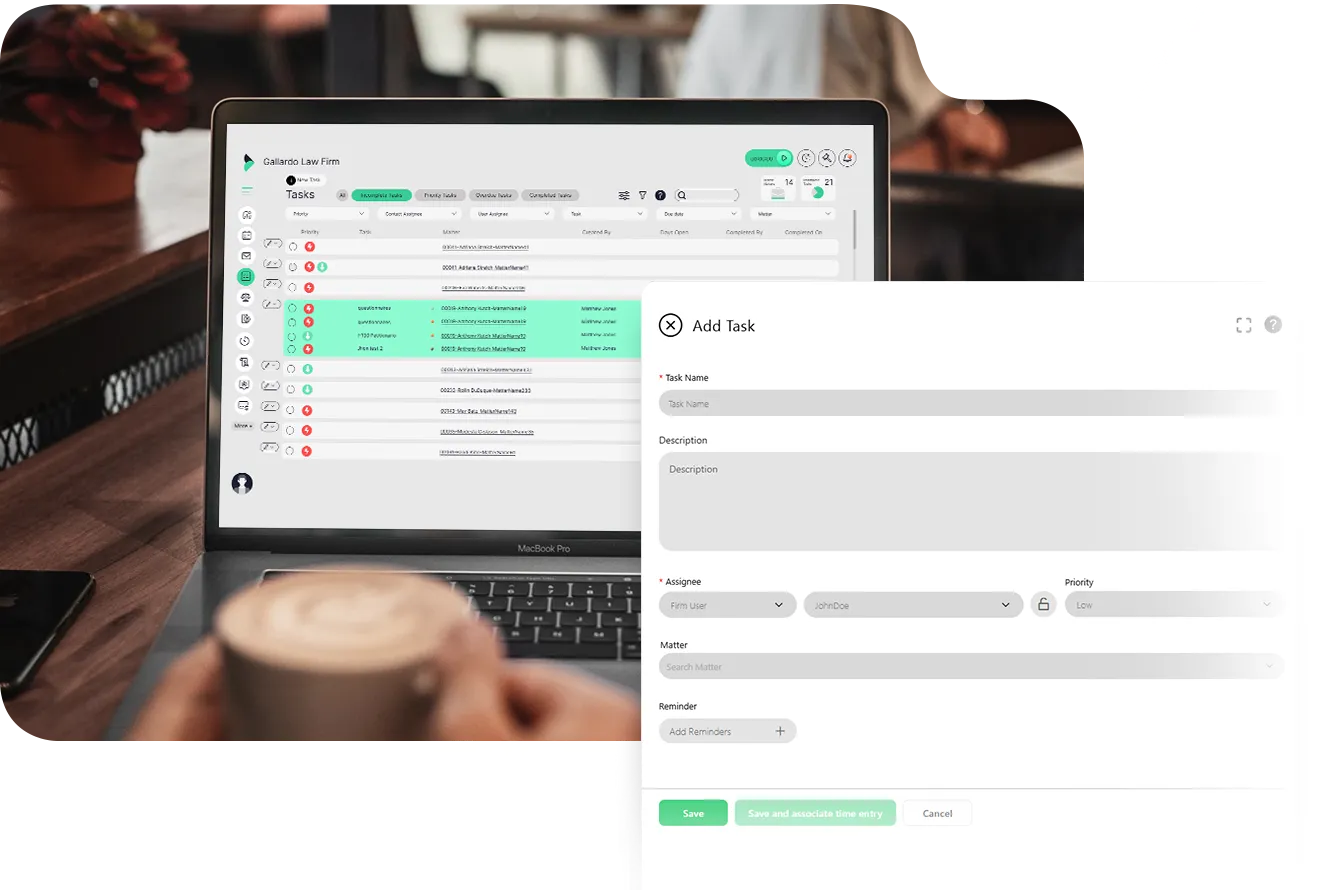
Maatdesk is legal task management software for law firms, built into the same legal practice management platform as your matters, calendar and billing. Every task gets a name, an assignee from the firm or the matter team, a Low, Medium or High priority, reminders and a due date, fixed or set from another task of the same matter. Tasks appear on the assignee's dashboard, on the matter's Tasks tab and on the Task calendar, the time spent on a matter task can be saved as a time entry, and the Tasks list shows what is open, completed or overdue by user or matter, in the browser on any computer or phone. Legal task management software is the system a law firm uses to decide who does what, for which matter and by when, and to see whether it got done. Law firm task management software exists because legal work runs on follow-through: a filing depends on a draft, the draft depends on the client's documents, and a task that lives in one person's inbox or on a sticky note has no owner the rest of the firm can see. When tasks lack ownership and visibility, work stalls. In Maatdesk, tasks are not a separate app. They are part of the same legal practice management software that holds the firm's matters, calendar and billing, so a task can be linked to a matter and assigned to its matter team, its due date goes on the Task calendar, and the time spent on it becomes a time entry on the same matter. That makes it task management software for law firms rather than a general to-do list: every task has a name, an assignee, a priority and a due date, and the firm's open, completed and overdue work sits in one Tasks list. Maatdesk states the limits plainly. A private task is visible only to its creator, its assignee and the firm's administrators. Completed tasks and tasks with a time entry cannot be deleted, and editing a completed task makes it incomplete again. Due dates set from another task, and time entries saved with a task, are available only when the task is linked to a matter. Three screens from Maatdesk's legal task management software: the My Tasks card on an attorney's dashboard, with each task's priority, due date and who created it; the Add Task panel, where a task gets its name, description, assignee, priority and matter; and the firm's Tasks list grouped by matter, with completed and overdue work, days open and the user assignee of every task. Everything below is the task side of Maatdesk: task management software for legal professionals, from attorneys to the paralegals and staff who work beside them. Lawyer task management in Maatdesk follows one rule: every piece of work gets a name, an owner, a priority and a due date and, when it belongs to a case, a matter. Every task needs an assignee. Pick any firm user or, for a task linked to a matter, someone from the matter team: the users who work on that case, each with a professional role such as Attorney, Paralegal or Legal Assistant. Delegating legal work is one field, and the task appears in the My Tasks card of the assignee's dashboard. Link a task to a matter, or start it from the matter's Tasks tab and the matter is already selected. A matter's tasks stay on its record in your case management software, beside its notes, documents and bills, and a contact's Tasks tab works the same way. Every task carries a priority, Low by default. My Tasks shows it as a colored label, and the Tasks list filters by priority, so the High tasks on a busy day are the first ones anyone sees. Add one or more reminders to a task. Each one notifies a firm user or a contact a set number of minutes, hours, days or weeks before the due date, so the client who owes you documents can be reminded as well as the attorney who needs them. Set a fixed date with Due at, or use Due in to date a task from another task of the same matter: a number of calendar days, weeks, months or years after or before that task's due date. Each task in a sequence then takes its date from the one it depends on. Each task's due date goes on the Task calendar in the Schedules module, a system calendar Maatdesk fills in for you. Task events start with TK- and open the task itself, so the firm's legal calendar shows tasks beside events and deadlines. Click Save and associate time entry to record the time a matter task took, or add a time entry when you mark it completed. A timer can also be started from My Tasks, so the work turns into billable hours on the matter, ready for legal billing. Click the lock on the Add Task panel to make a task private. Only its creator, its assignee and the firm's administrators can see it, so a sensitive to-do on a confidential matter stays with the people who need it. The Tasks list shows overdue tasks in red and filters by All, Completed, Incomplete or Overdue. Each row shows the matter, the user assignee, the due date and how many days the task has been open, and completed tasks keep who completed them and when. Every attorney's Maatdesk dashboard has a My Tasks card: each task with its priority, name and due date, and who created it and when. Point to the gavel icon to see the task's matter, click the check icon to complete the task or the X to delete it, and Go to Tasks opens the full list. The number on the Tasks icon in the left menu shows how many open tasks are waiting. Twenty-five seconds on how that looks in Maatdesk: Eight steps, all inside Maatdesk: four to create and assign a task, and four to track it until it is done. Click Add Task in the Tasks module, or in the Tasks tab of a matter or contact, and enter the task name and a description. Starting from a matter selects the matter for you. Choose Firm User or, on a matter task, Matter Team, and pick the assignee. Click the lock if only you, the assignee and the administrators should see the task. Pick Low, Medium or High, then add reminders for a firm user or a contact, minutes, hours, days or weeks before the due date. Use Due at for a fixed date, or Due in to date the task from another task of the matter. Click Save, or Save and associate time entry to record the time as well. The task appears in the assignee's My Tasks card, on the matter's Tasks tab and on the Task calendar of the Schedules module. Group the list by user or matter, show only Incomplete or Overdue work, and filter by priority, user assignee, task name, due date range, matter or creator. Complete the task from the Tasks list, from My Tasks or from the task itself. For a task on an open matter with no time entry, a time entry can be added as it is completed. Select several tasks and mark them completed or incomplete, or delete them, in one bulk action. Completed tasks and tasks with a time entry cannot be deleted. Delegation is where most task lists break down: the work is handed off, but the attorney who handed it off keeps checking. In Maatdesk the delegated task carries its own assignee, priority and due date, so everyone on the team knows what is theirs, and the Tasks list grouped by user shows where each piece of work stands without another status email. That is the job of legal task delegation software, and in Maatdesk it is one field on every task. Thirty-nine seconds on what that feels like: Legal task tracking answers one question for the whole firm: what is still open, for which case, and who has it? The Tasks module lists the firm's to-dos with each task's priority, status, matter, creator, days open, due date and user assignee. Group By Matter puts every task of a case under that case, which is how a firm can manage tasks across multiple legal cases without opening each one. Group By User does the same for people: one heading per assignee, so the firm sees each attorney's and each paralegal's open work, and paralegal task tracking becomes a filter rather than a round of emails. The filter panel narrows the list by priority, user assignee, task name, due date range and matter and, under More, by who created the task; the column selector shows or hides columns. Inside a case, the matter's Tasks tab lists only its tasks, and the matter timeline shows its open tasks under Pending Items, beside documents waiting for e-signature, with a Tasks category that filters the timeline to task events. That makes Maatdesk legal task tracking software as well as task management software: completed work keeps who completed it and when, and overdue work stays red until someone deals with it. Legal project management treats a matter as a project: break the case into steps, give each step an owner and a date, and follow progress until the matter closes. Maatdesk does this with the tools already on the matter, so a firm does not need separate project management software for lawyers next to its case files. The plan is the matter's task list. Each matter task is assigned to someone on the matter team with a priority and a due date, and the Due in option dates a step from another task of the same matter, so the order of the work is written into the dates. The dates the court or the law sets go on the matter's Deadlines tab, and a practice area's deadline template adds its suggested deadlines to a new matter in one step. Progress is visible the same way: the matter's Tasks tab and timeline show what is open and what is done, Group By Matter in the Tasks list shows every case's open work in one view, and time entries saved on tasks show the hours each step took. These legal project management tools live on the case record, so Maatdesk works as law firm project management software and as the firm's task list at once. Many small firms still track legal work in three places: personal to-do lists, an inbox and a spreadsheet of who is doing what. Law firm task management replaces all three, so the first thing to check is where a task lives. In Maatdesk it lives on the matter, with an owner and a due date. Setting Maatdesk up for the first time? The legal software implementation checklist covers offices, users, practice areas and matter conventions before the first task is assigned. A task is work someone has to do; a deadline is a date the law or the court sets. Maatdesk keeps both on the matter and puts both on the calendar: Work with an assignee, a priority, reminders and a due date, fixed or set from another task of the matter. Task due dates go on the Task calendar. The matter's Deadlines tab lists its legal deadlines, such as a statute of limitations or a filing deadline, each with a deadline type, criticality, the user it is assigned to and reminders by Maatdesk notification or email. Each deadline's urgency runs from Upcoming to Due Soon and Overdue until it is satisfied or waived. A practice area can carry suggested deadlines. Apply Deadline Template adds them to a matter, with rule-based dates calculated from the matter's open date, and deadlines appear on the Deadlines calendar. The deadline sets the date; the task sets who does the work before it. For the calendar side, with court dates, events, shared calendars and reminders, see Maatdesk's legal calendaring software. Maatdesk is a web app for attorneys, so the same Tasks list, My Tasks card and Add Task panel open in Chrome, Safari or Edge on a Mac, a Windows PC, a phone or a tablet, with nothing to install. For attorneys looking for a legal task app, that means one set of tasks on every device, not a separate mobile to-do list to keep in step with the office. Law firm productivity tools only help when the whole team uses them. Because tasks sit inside the platform the firm already uses for matters, calendars and billing, there is no second system to adopt: a task assigned at the desk is in the assignee's My Tasks on their phone. Legal task management software is the system a law firm uses to assign legal work, link it to the matter it belongs to and track it until it is done. Each task has a name, an assignee, a priority and a due date. In Maatdesk, task management is part of the firm's legal practice management software, so tasks sit on the matter beside its calendar, time entries and bills. Because legal work depends on follow-through: when tasks lack ownership and visibility, work stalls and deadlines slip. Disciplined task management means every task has an owner, a priority and a due date, and the firm can see what is open and what is overdue. The profession sets the same bar: ABA Model Rule 1.3 requires a lawyer to act with reasonable diligence and promptness in representing a client. Maatdesk requires an assignee on every task and shows overdue tasks in red in the Tasks list. Maatdesk ties each task to the matter it belongs to. A matter task can be assigned to the matter team, dated from another task of the same matter with Due in, and listed on the matter's Tasks tab and timeline, so the work follows the case instead of a separate list. Tasks that belong to no matter are assigned to a firm user. Yes, for running each matter as a project. The matter's tasks are its steps, each with an assignee, a priority and a due date; the Due in option dates one task from another task of the same matter; the Deadlines tab and deadline templates hold the dates the court or the law sets; and time entries on tasks record the hours each step took. The matter's Tasks tab and timeline show progress, so these legal project management tools stay on the case record instead of in separate project management software for law firms. A task name and description; an assignee from the firm or the matter team; Low, Medium or High priority; private tasks; reminders to firm users or contacts; fixed due dates or dates set from another task; the Task calendar; the My Tasks card on the dashboard; time entries on tasks; All, Completed, Incomplete and Overdue filters; grouping by user or matter; a filter panel; and bulk actions. Assign each task to a firm user or a member of the matter team when you create it, then open the Tasks module and choose Group By User. Each assignee's tasks appear under their name with priority, status, matter and due date, and the filters narrow the list to one person, one matter, a due date range or overdue work. Link each task to its matter, then open the Tasks module and choose Group By Matter: each case's tasks appear under that case with their status and due dates. Filter by matter to work one case at a time, or open a matter's Tasks tab to see only its tasks. Yes, legal task delegation is built into every task. On a task linked to a matter, choose Matter Team as the assignee type and pick the paralegal, legal assistant or attorney on that matter's team; for any other task, choose a firm user. The task appears in the assignee's My Tasks card and on the Task calendar. Delegating does not end the attorney's responsibility: under ABA Model Rule 5.3, lawyers who supervise paralegals and staff must make reasonable efforts to ensure their work meets the lawyer's own professional obligations, and the Tasks list grouped by user shows what each person has open. Every task has a Low, Medium or High priority, and the My Tasks card on each attorney's dashboard lists their tasks with priority, due date and who created them. The Tasks list filters by priority and status, so High and overdue work is found first, and reminders arrive before the due date. Yes. A task can carry one or more reminders, each sent to a firm user or a contact at a chosen number of minutes, hours, days or weeks before the due date. Matter deadlines have reminders of their own, by Maatdesk notification or email. Yes, for tasks linked to a matter. Choose Due in instead of Due at, enter a number of calendar days, weeks, months or years, choose After or Before, and select the task of the matter that the date is based on. Yes. Each matter has a Deadlines tab for legal deadlines such as a statute of limitations or a filing deadline, each with a deadline type, criticality, assignee and reminders, and a practice area's deadline template can add suggested deadlines with dates calculated from the matter's open date. Deadlines and tasks both appear on the legal calendar. Yes. Click Save and associate time entry when you save a task linked to a matter, or add a time entry when you mark the task completed. A timer can also be started from My Tasks for a time entry linked to a task, so the time becomes billable on the matter. Yes. Click the lock on the Add Task panel and only you, the assignee and the firm's administrators can see the task. When the whole legal team works from the same task list, nobody has to ask who is doing what. In Maatdesk tasks group by user or matter, overdue work is red, completed tasks show who completed them and when, and a matter's open tasks appear on its timeline, so the list itself answers the follow-up questions. It can. When every task has an owner, a priority and a due date, attorneys spend less effort remembering what is open and more on the legal work itself. Maatdesk keeps that list for them: My Tasks on the dashboard, reminders before due dates and overdue tasks in red. Maatdesk is a web app rather than a downloaded app: tasks are created, assigned and completed in Chrome, Safari or Edge on a phone or a tablet as well as on a Mac or a Windows PC, with nothing to install. Task management is included in Maatdesk's single plan: $39 per user per month billed monthly, or $29 per user per month billed annually. Maatdesk is not free task management software, but new firms that sign up before December 31, 2026 get a 12-month free trial with no credit card required; see pricing for what the plan includes, and our guide to legal practice management software costs for market prices. The best task management software for law firms is the one that ties every task to a case and an owner. Judge any option on five tests: a required assignee on every task; tasks linked to the matter; priorities and overdue work the whole team can see; reminders and due dates that can follow other tasks; and time spent on a task recorded for billing. Maatdesk passes all five and keeps the matter, the calendar and billing in the same platform.What Is Legal Task Management Software,
and Why Do Law Firms Need It?Legal Task Management Software in Three Screens
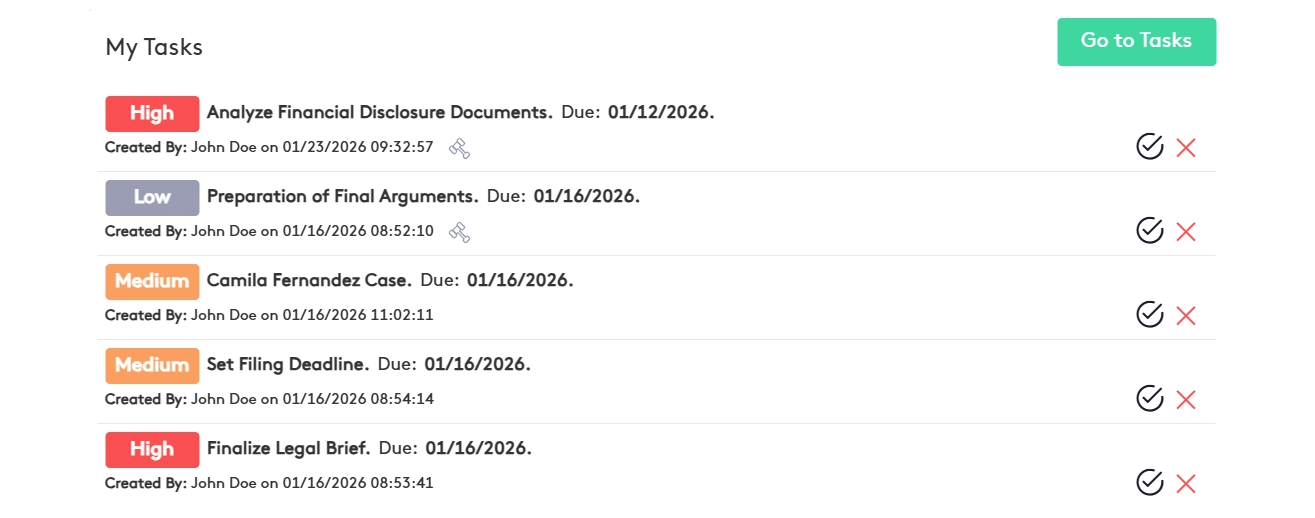
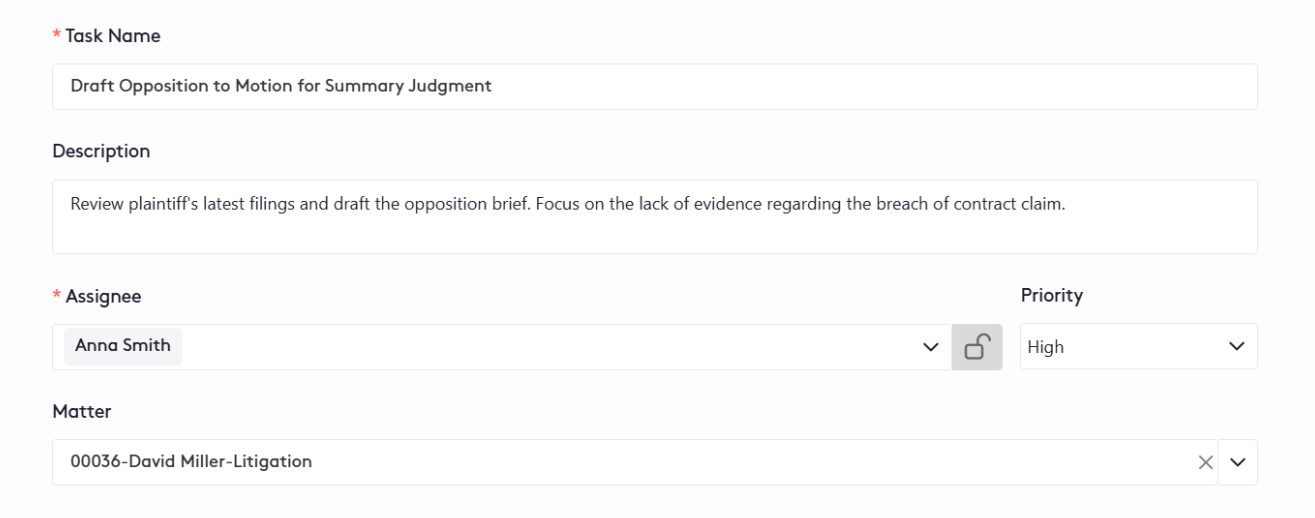
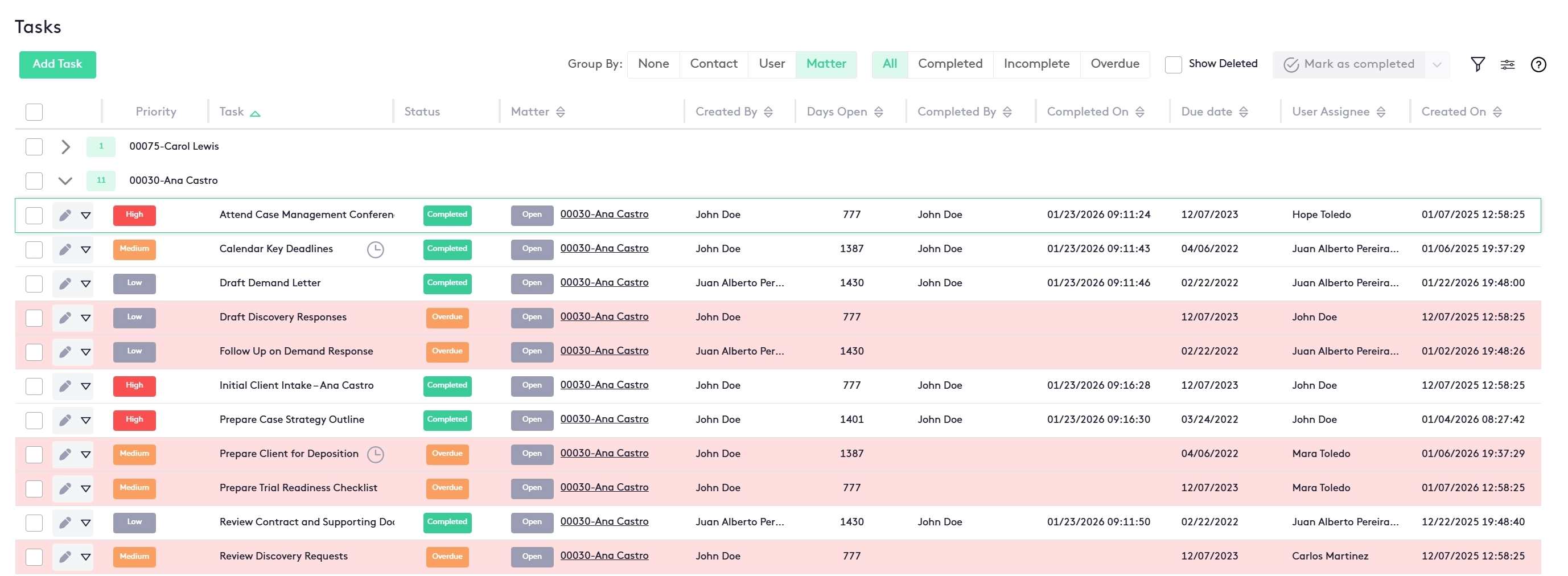
Task Management Software for Lawyers and Their Legal Teams
Task Assignment and Delegation
Linked to the Matter
Task Prioritization: Low, Medium or High
Reminders Before the Due Date
Due Dates That Follow Other Tasks
Every Task on the Calendar
Time Tracking on Tasks
Private Tasks
Overdue Work in Red
Task Management for Attorneys: Priorities and Due Dates at a Glance
How to Assign and Track Legal Tasks Across Your Team
Create and assign
1. Open Add Task
2. Delegate it
3. Set the priority and reminders
4. Set the due date and save
Track it until it is done
5. Work from My Tasks
6. Watch the firm's Tasks list
7. Mark it completed
8. Update many tasks at once
Legal Task Delegation: Hand It Off and Let It Go
Legal Task Tracking
Across Every MatterLegal Project Management Software:
Run Each Matter as a ProjectLaw Firm Task Management Software Instead of To-Do Lists, Email and Spreadsheets
Question To-do lists, email and spreadsheets Maatdesk task management Who owns the task Whoever remembers saying yes A required assignee: a firm user or a member of the matter team Which case it belongs to A word in an email subject line The matter it is linked to, and that matter's Tasks tab What comes first Every item looks the same Low, Medium or High priority on every task Reminders A personal calendar alert Reminders to a firm user or a contact before the due date Dates that depend on each other Recalculated by hand Due in: a date set from another task of the matter Overdue work Found when someone asks Shown in red, with an Overdue filter Time spent Reconstructed at the end of the month Saved as a time entry with the task Sensitive work Whoever has the file can read it Private tasks: only you, the assignee and administrators Subscription A separate tool, if the firm buys one Included in Maatdesk's single plan What your firm gains
Tasks, Legal Deadlines and the Calendar Work Together
Tasks
Matter deadlines
Deadline templates
A Legal Task App
in Any BrowserLegal Task Management Software FAQs for Law Firms